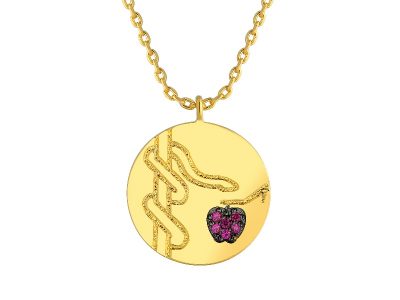
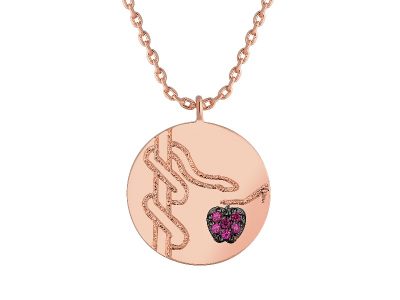
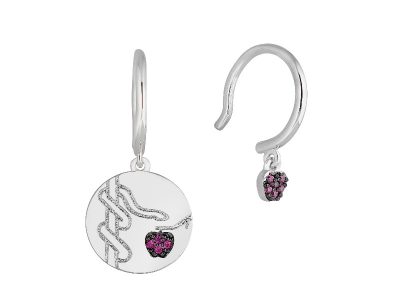
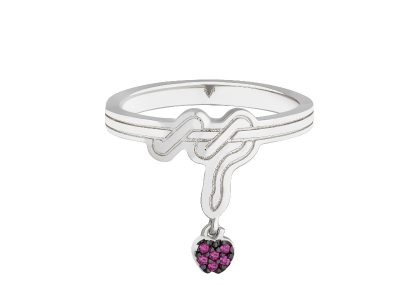
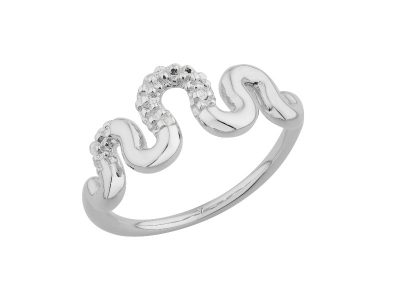
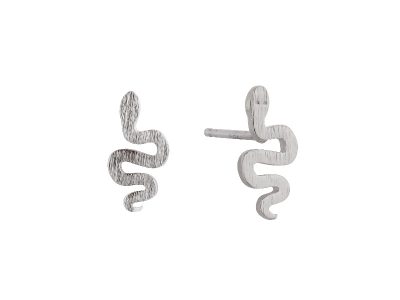
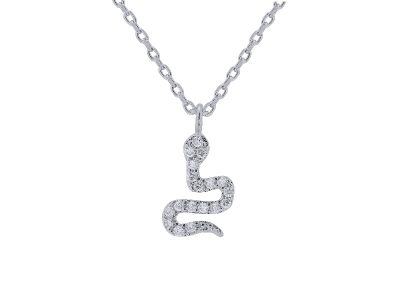
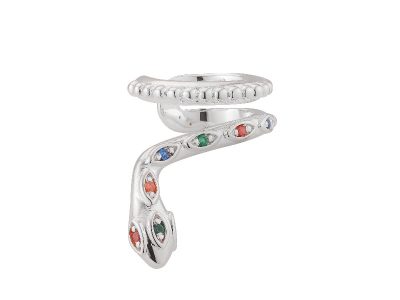
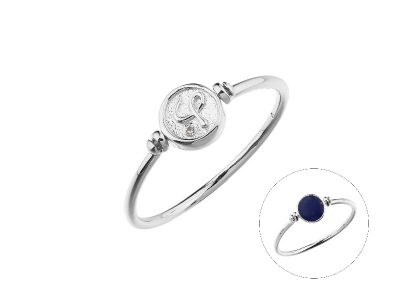
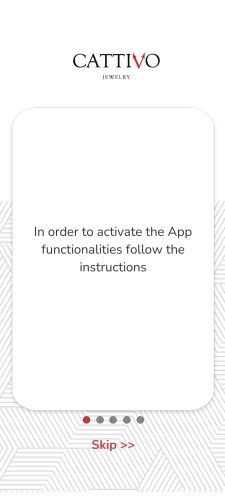
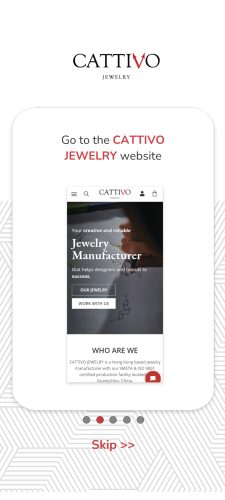
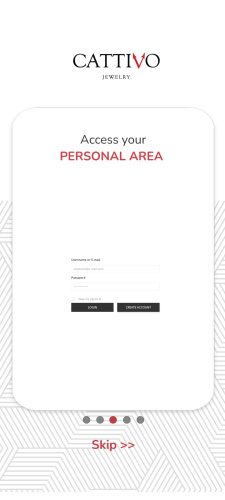
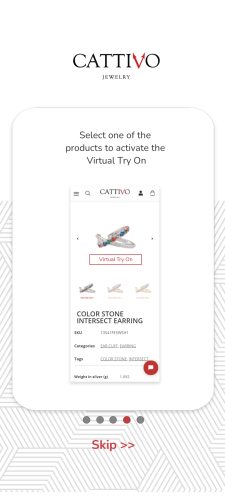
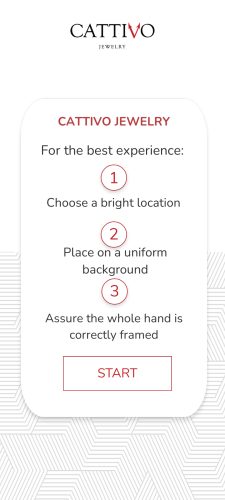
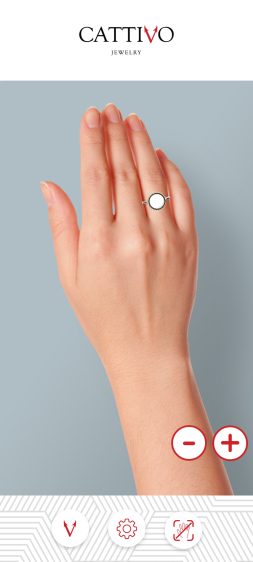
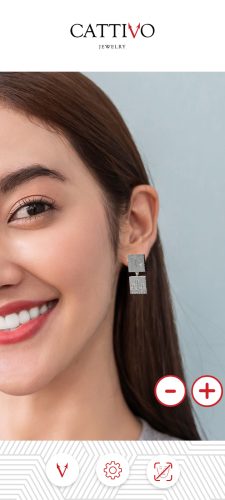
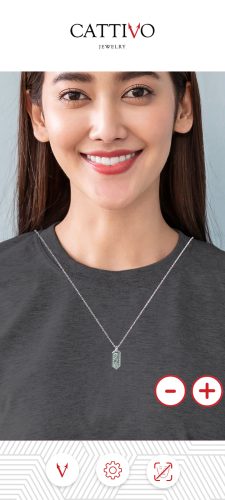
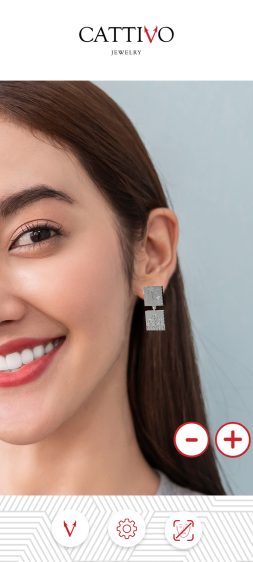
In this section the application shows some informative screens to the user to show how to import 3D models and try them in AR.
2. Model Download Interface
This section is shown while a 3D model is being downloaded and imported by the VTO App. A progress is visualized while downloading, together with some more instructions. At the end of the download/import process, a “CONTINUE” button allows to proceed to the model setup section.
3. Model Setup
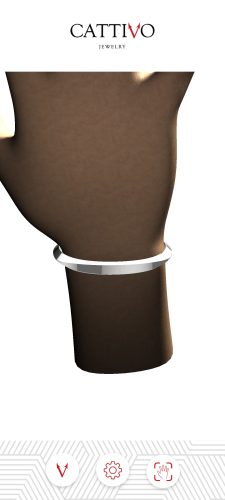
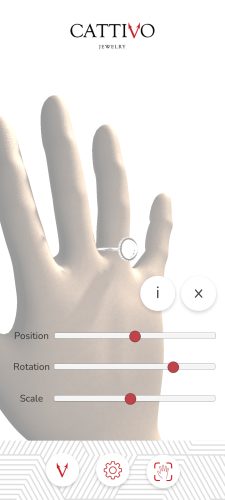
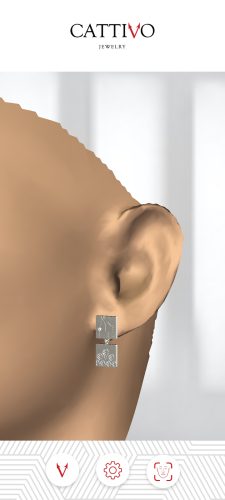
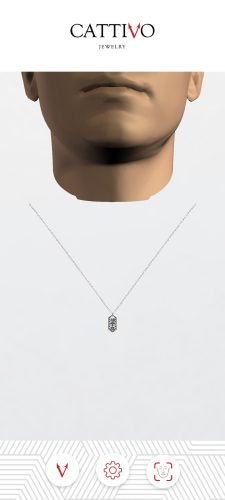
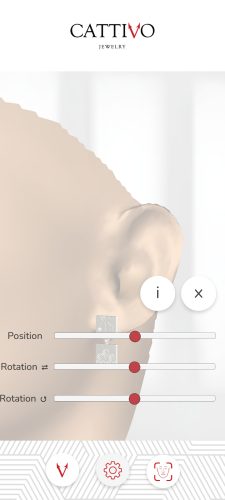
In this section the user can tune the 3D model, correcting its position, scale and rotation using some sliders and a 3D hand/face model as reference.
3.1. Ring/Bracelet Setup
3.2. Earring/Necklace Setup
4. Virtual Try On
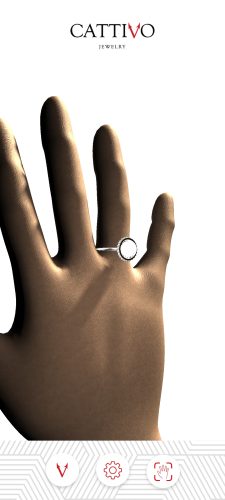
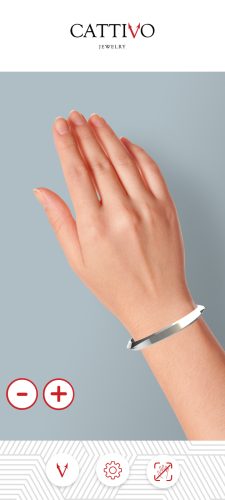
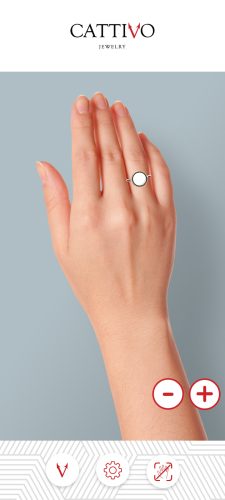
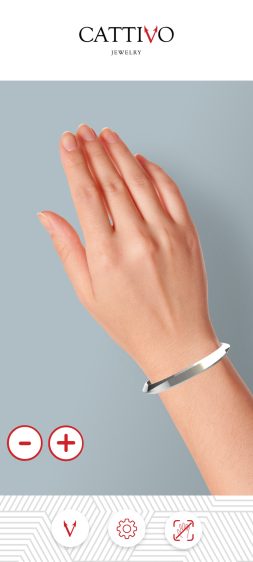
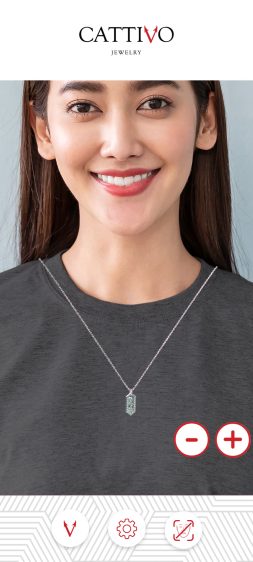
Once the 3D model has been tuned, users can finally be able to try it in augmented reality.
4.1. Ring/Bracelet Virtual Try On
4.2. Earring/Necklace Virtual Try On
Note:
Feel free to play around VTO, to get a taste of how product looks on you!
First, download one of the apps below (respective to your phone device).
Then, go to the phone settings and ensure that the “access right to camera” is enabled. Next, please scan the QR code of the selected product with your phone camera.